
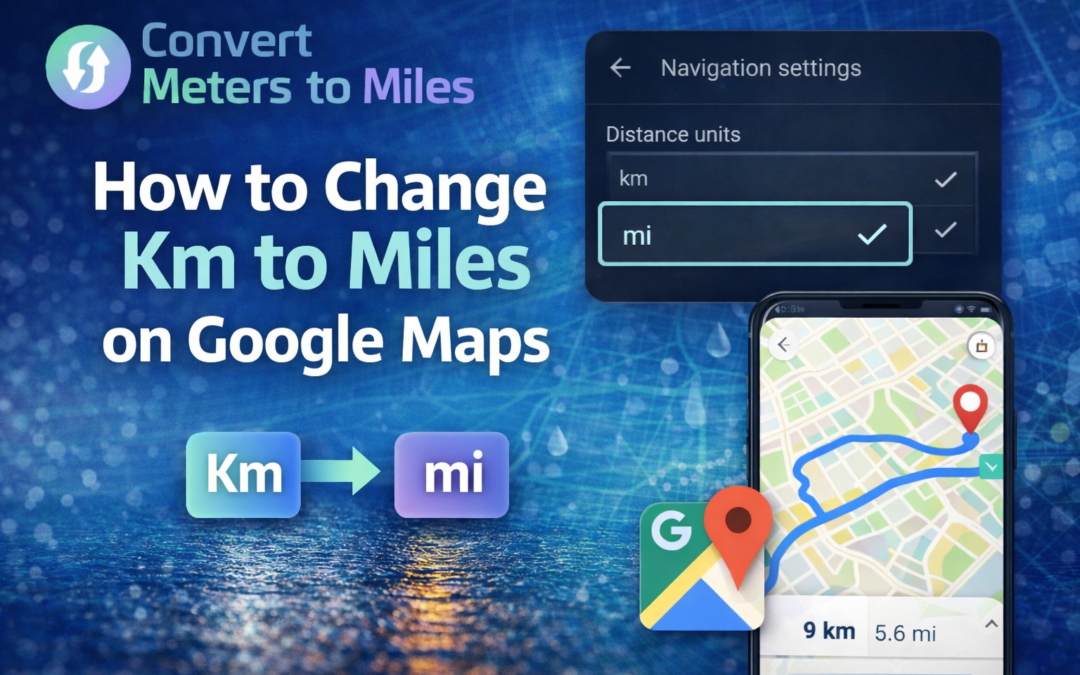
If you travel in the United States, you expect distances in miles, not kilometers. Google Maps sometimes defaults to kilometers based on your region or device settings, which can create confusion during navigation.
In this guide, you will learn exactly how to change km to miles on Google Maps across mobile and desktop, along with practical troubleshooting tips that ensure your settings stay consistent.
Why Google Maps Shows Kilometers Instead of Miles
Google Maps automatically selects distance units based on your device’s region and language settings. If your phone or computer is set to a country that uses the metric system, the app will often default to kilometers. This automatic decision-making process helps global users, but it can frustrate you if you prefer miles in the United States.
More than 95 percent of the world uses the metric system, which explains why kilometers are common internationally. However, the United States remains one of the few countries that primarily uses miles for road distances. Because of this regional difference, Google Maps allows you to manually override the default unit.
You should understand that unit preferences can differ between devices even when you use the same Google account. That means your phone may show kilometers while your desktop displays miles. Adjusting the settings directly inside Google Maps ensures consistency across platforms.
How to Change KM to Miles on Google Maps iPhone
If you use an iPhone, the process takes less than a minute. Open Google Maps, tap your profile picture in the top-right corner, and select Settings from the menu. Inside Settings, tap Distance units and choose Miles instead of Kilometers or Automatic.
After switching, you may need to refresh your current route for the change to appear. Close the app fully and reopen it if distances still show in kilometers. Once updated, turn-by-turn navigation and map scale will reflect miles.
Your iPhone’s regional settings can also influence Google Maps. If your device is set to a metric region, Google may default to kilometers under Automatic. Selecting Miles manually prevents the app from reverting based on location.
How to Change KM to Miles on Google Maps Android
Android users follow a nearly identical process within the Google Maps app. Tap your profile icon, open Settings, and then select Distance units from the list. Choose Miles to immediately replace kilometers in route guidance and map scale.
Android devices sometimes sync measurement preferences with system language settings. If you notice the unit changes back after updates, revisit Distance units and confirm that Miles remains selected. This small adjustment ensures stable navigation readings.
Navigation clarity improves when your unit matches familiar road signage. In the United States, highways display distances in miles, so matching Google Maps to miles enhances quick decision-making while driving. Accurate unit alignment reduces hesitation and improves safety.
How to Change KM to Miles on Google Maps Desktop
When using Google Maps on a computer, you adjust units through route settings. Visit Google Maps in your browser, click Directions, and then select Options below the route input fields. Under Distance units, choose Miles to update the display instantly.
The desktop version also includes a scale bar at the bottom of the map. Clicking the scale may toggle between kilometers and miles depending on your zoom level. This feature helps you visually confirm that the unit has changed.
Unlike the mobile app, the web version does not rely heavily on device region settings. Your manual selection usually remains active during that browsing session. If it resets later, simply repeat the quick adjustment in Options.
How Region Settings Affect Distance Units
Your device’s region determines default measurement behavior across apps. iPhones use Language and Region settings, while Android phones rely on system locale configuration. If those settings reflect a metric-based country, Google Maps may default to kilometers.
For example, if you recently traveled abroad, your device may temporarily switch measurement behavior. Even after returning to the United States, kilometers might remain active. Selecting Miles manually overrides this automatic behavior.
Consistency matters when using multiple navigation tools. If you compare driving distances with measurement references such as why is a track 400 meters, your understanding of unit differences becomes clearer and avoids confusion. Aligning units across tools improves accuracy.
Troubleshooting When the Unit Does Not Change
Sometimes Google Maps continues to show kilometers even after you select Miles. In most cases, closing and reopening the app resolves the issue. Restarting your device can also refresh system-level measurement settings.
Ensure your Google Maps app is updated to the latest version. Outdated versions may contain bugs that prevent settings from saving properly. Keeping your app current improves performance and reliability.
If you frequently compare distances across measurement contexts such as how many meters is one lap around the track, you benefit from consistent unit formatting in miles. That alignment simplifies calculations and eliminates unnecessary conversions.
Understanding Map Scale and Distance Display
The map scale in Google Maps adjusts dynamically as you zoom in and out. When set to miles, the scale reflects shorter or longer distances in mile increments. This visual cue helps you estimate travel distances quickly without starting navigation.
The scale bar serves as a reference tool rather than a route measurement. If you prefer constant visibility, enable Show scale on map in mobile settings. Keeping the scale visible reinforces spatial awareness during travel planning.
Distance clarity enhances navigation confidence. When miles display consistently across routes, scale, and turn-by-turn guidance, you reduce cognitive load while driving. Clear units support faster interpretation and better route decisions.
When to Use Kilometers Instead of Miles
Although miles dominate in the United States, kilometers may be useful when traveling internationally. Many global road systems rely on metric measurements, and speed limits appear in kilometers per hour. Switching units temporarily prepares you for those environments.
Google Maps makes this transition simple because you can toggle units anytime. The flexibility ensures you adapt quickly to changing geographic contexts. Understanding both systems strengthens your spatial awareness.
If you work with metric conversions often, tools like meters to miles converter help translate measurements accurately when planning distances outside navigation apps. Using reliable conversion tools prevents calculation errors and maintains precision.
Comparing Miles and Kilometers for Everyday Use
One mile equals approximately 1.609 kilometers, which means kilometers appear numerically larger for the same distance. When Google Maps displays 10 kilometers, that equals about 6.2 miles. Understanding this relationship helps you mentally convert distances when needed.
Americans often conceptualize distance in miles because road signs and vehicle odometers use miles. This cultural familiarity influences comfort and speed of comprehension. Matching Google Maps to miles supports natural interpretation.
If you want a deeper explanation of metric-to-imperial relationships, reading about distance comparisons strengthens your understanding of how measurement systems connect mathematically. That foundational knowledge improves clarity when switching units.
Benefits of Setting Google Maps to Miles
Switching Google Maps to miles creates immediate consistency with United States road infrastructure. Highway signs, GPS instructions, and vehicle dashboards align seamlessly with your navigation app. This uniformity reduces confusion during long drives.
Clear unit alignment also improves travel planning. When estimating commute times or calculating fuel stops, miles integrate smoothly with American travel habits. Consistent measurement simplifies trip management.
From daily errands to cross-state road trips, reliable unit settings enhance efficiency. Small configuration changes inside Google Maps can significantly improve your navigation experience.
Final Thoughts
Learning how to change km to miles on Google Maps empowers you to tailor navigation to your preference. Whether you use iPhone, Android, or desktop, the adjustment requires only a few taps or clicks. Once configured correctly, miles will appear consistently in routes, map scale, and turn-by-turn guidance.
Taking control of your measurement settings ensures that your navigation experience matches real-world road signage in the United States. You avoid unnecessary mental conversions and reduce decision-making delays during travel. By understanding both unit systems and knowing how to switch between them, you maintain full control over your map-based distance display and travel with confidence.